Getting Started
WEBEDGE HELP
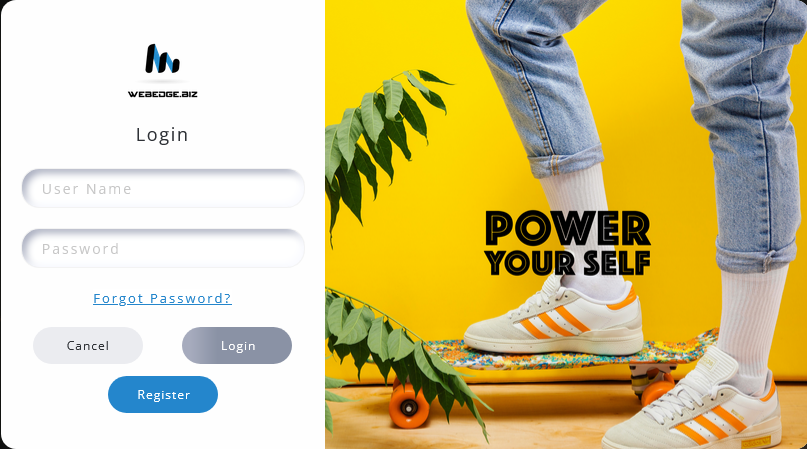
Go to https://webedge.biz/app/login to log into your account
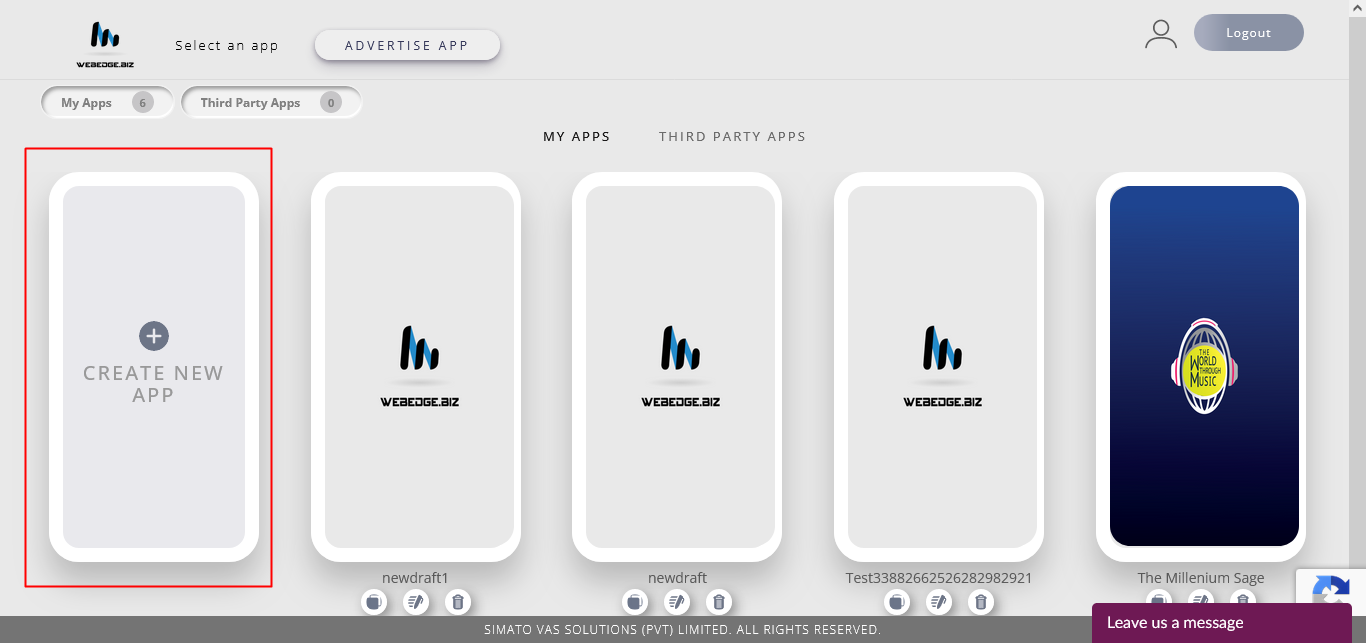
Select create new app button to start creating your first app
* All of our Pre-designed templated can be fully customized.
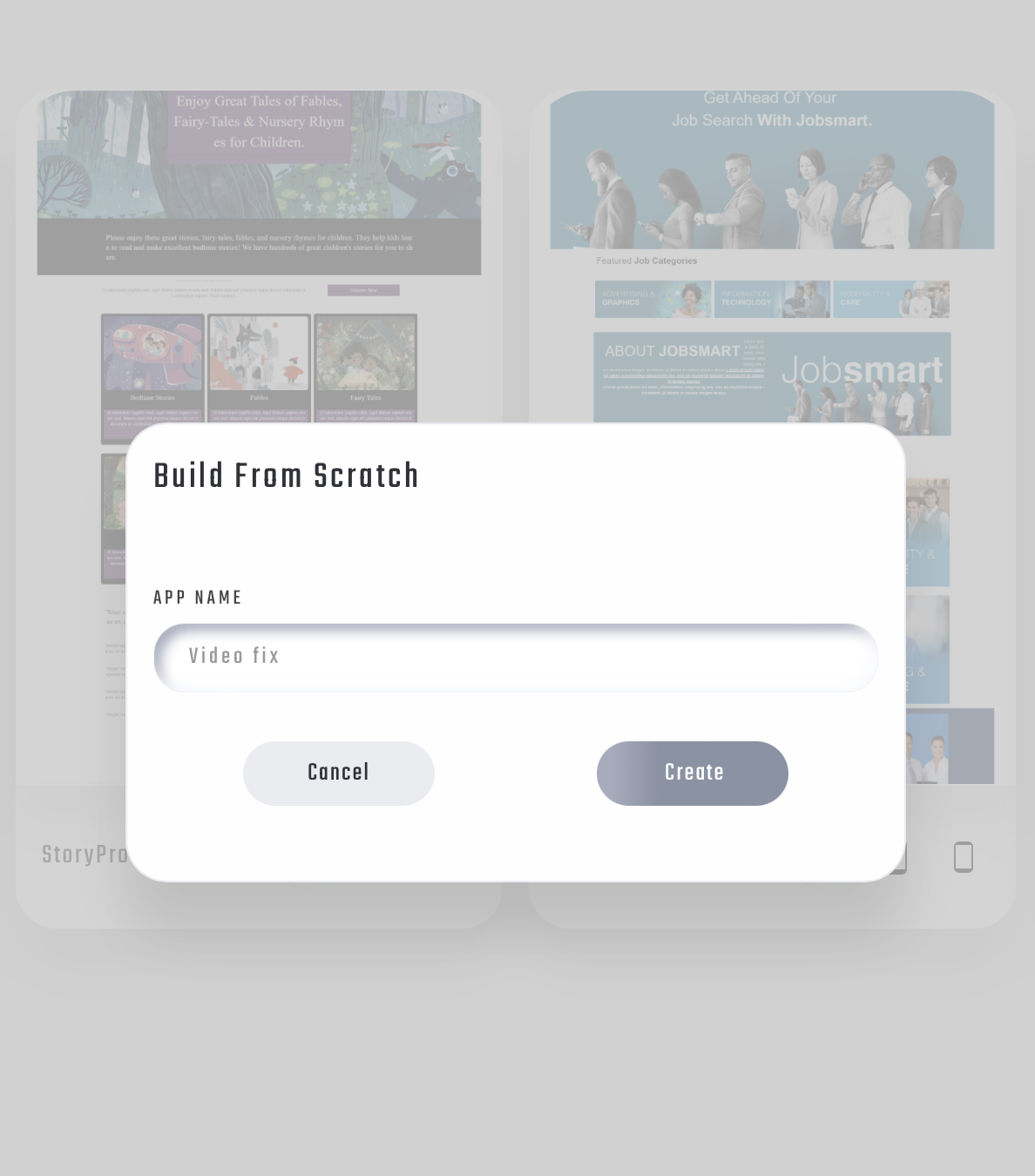
Enter your App Name and click create to start designing your very first app
Getting Accustomed
WEBEDGE User Interface
This is your app design screen. Lets get you familiarized
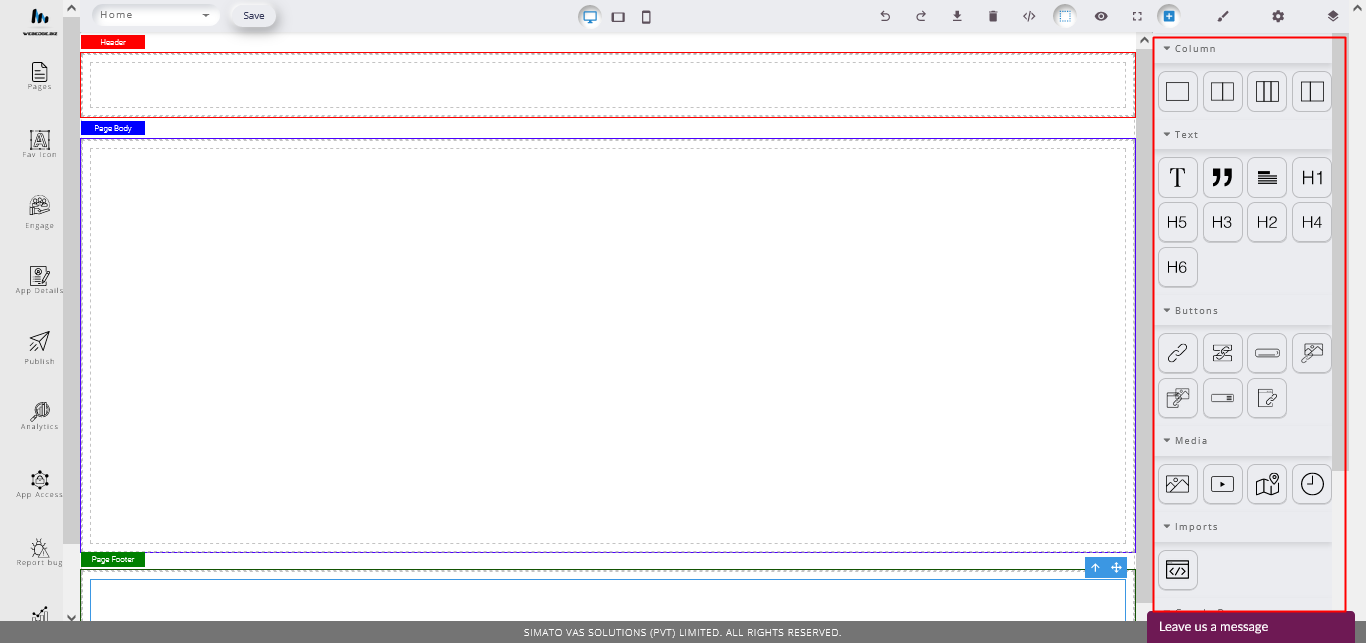
Header section (The Navigations menu should reside with in this section)
* Since the header section is a global element with in the website, Its recommended
to keep the section reserved for the navigations .

Footer Section ( Just like the header the “Footer” is a global element so any change or design decision made with in the section applies trough out the site)

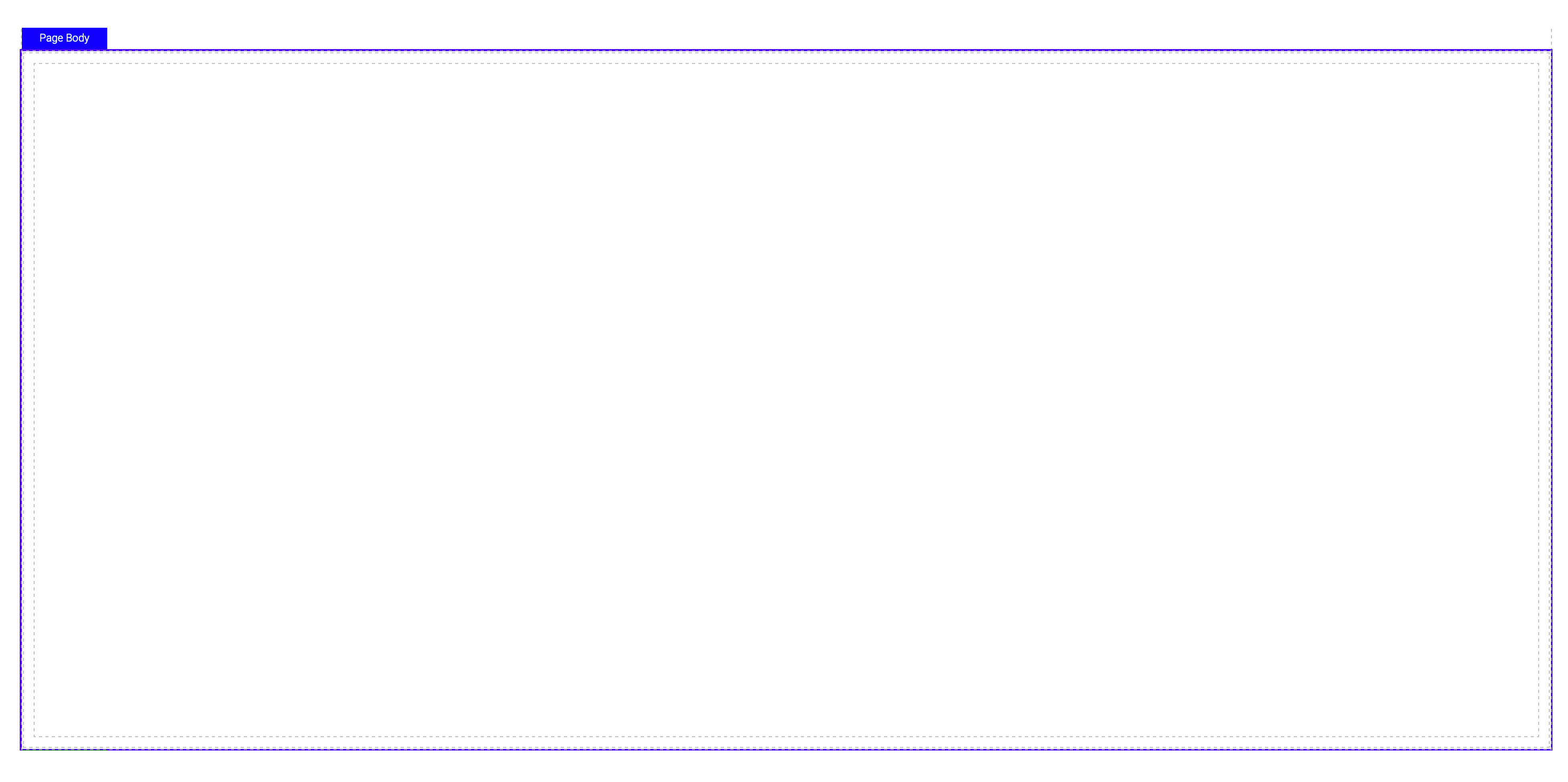
Body Section - This is the section where you start designing the majority of the site using most of the modules
Design Blocs
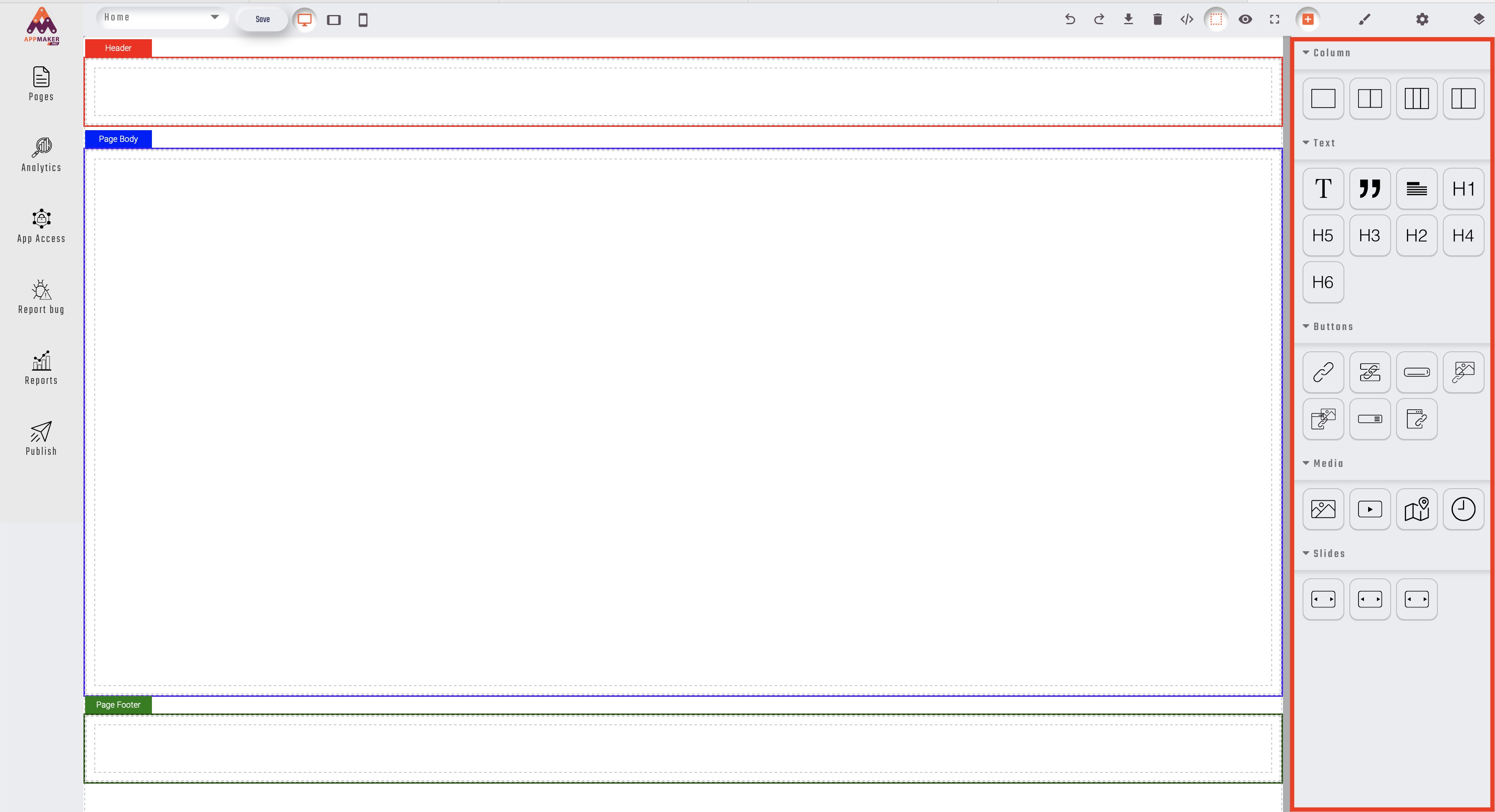
Modules Panel- here you can find all different modules and components that you will be usingto design your app
Column
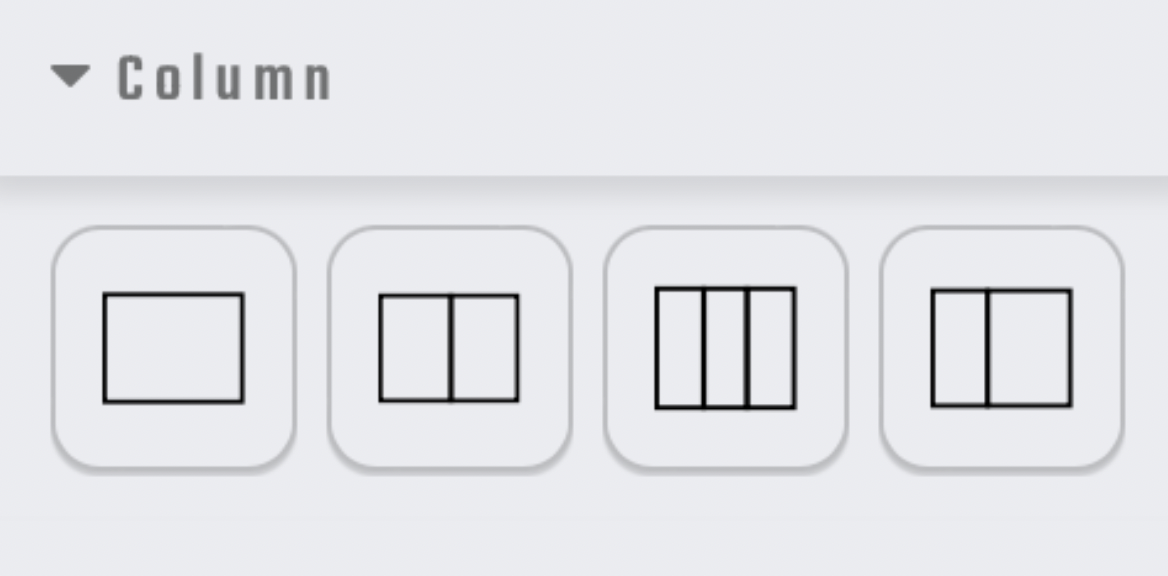
Here you will find all the column variants that cam bemused to structure your page design.
Text
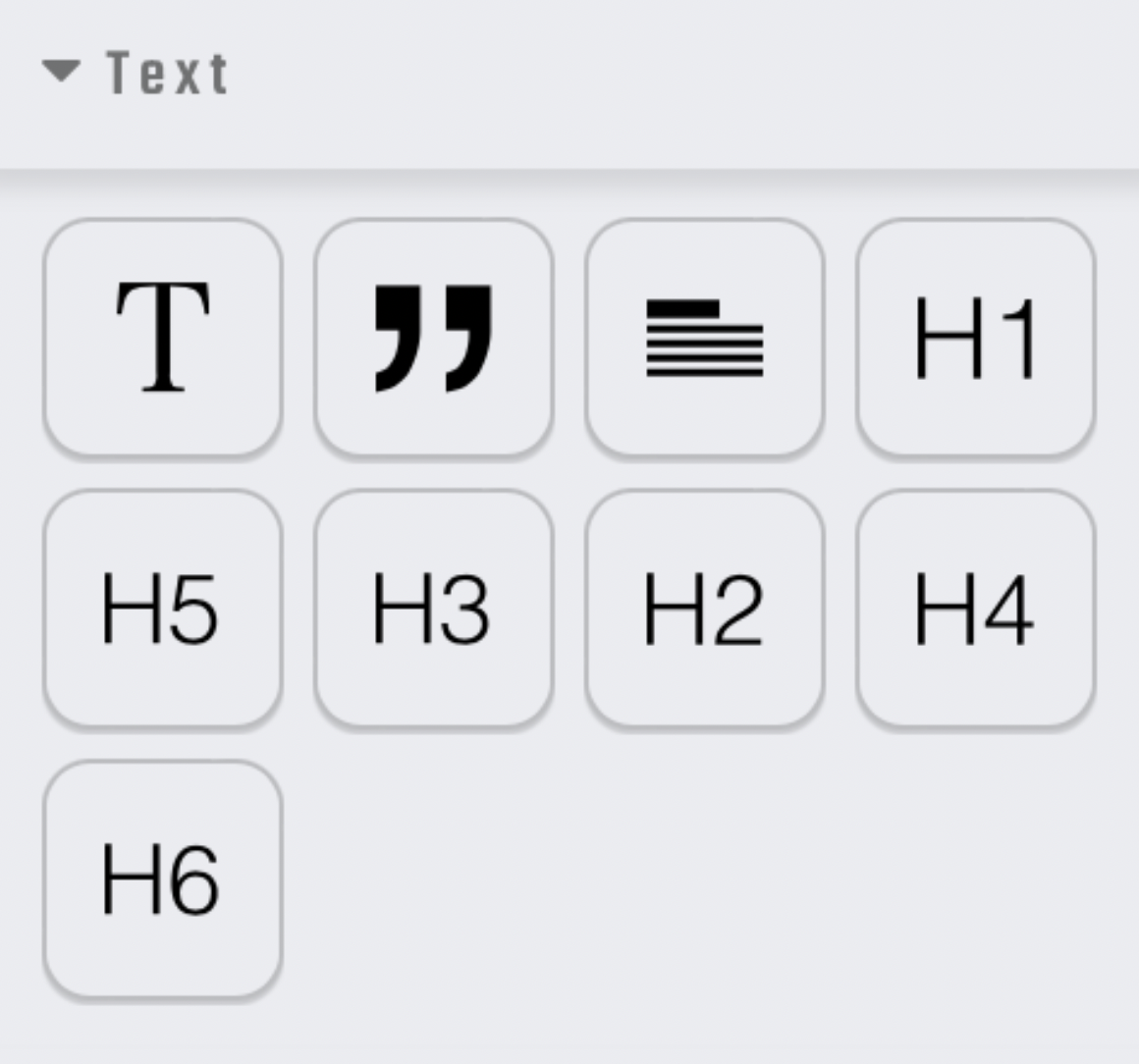
As the name suggests the section houses all text modules related to designing app pages.
Buttons
The section contains the link modules you can use the following modules link internal as-well as external sources of the modules
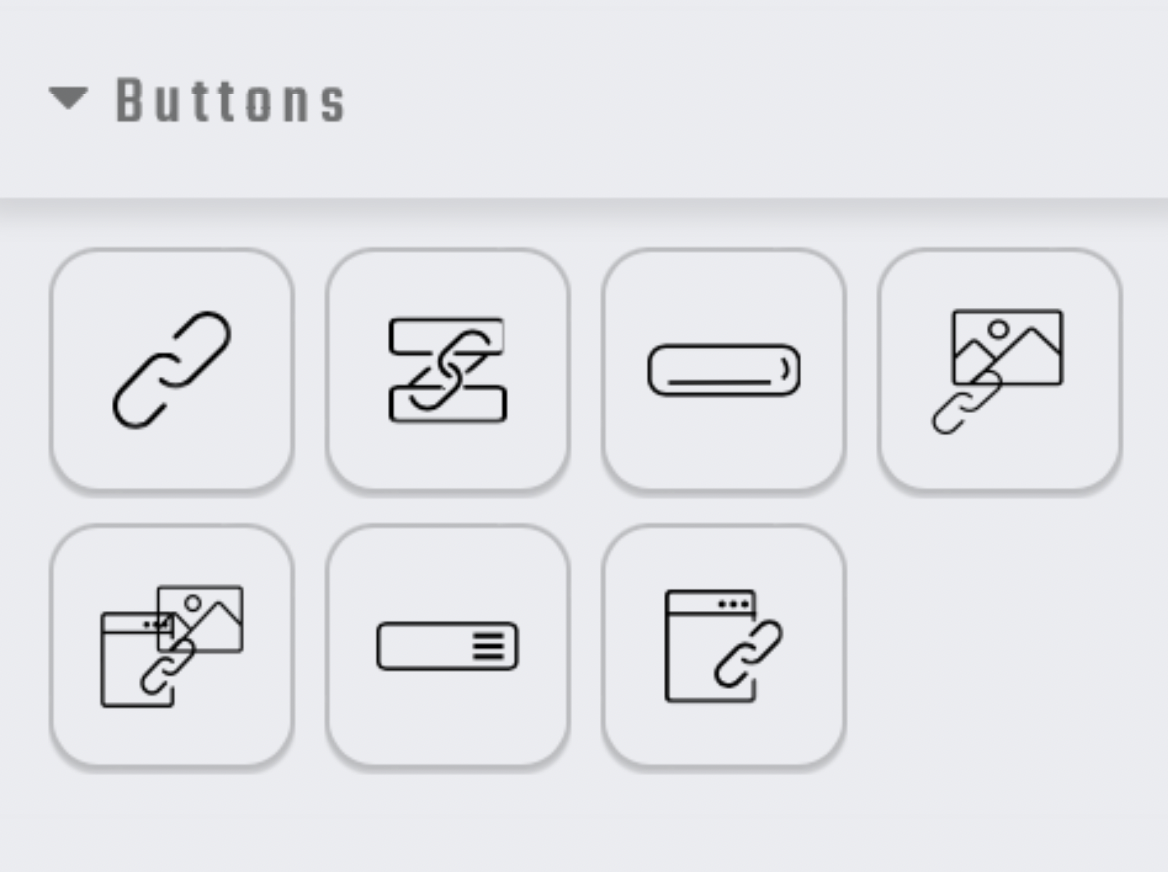
Buttons
The section contains the link modules you can use the following modules link internal as-well as external sources of the modules
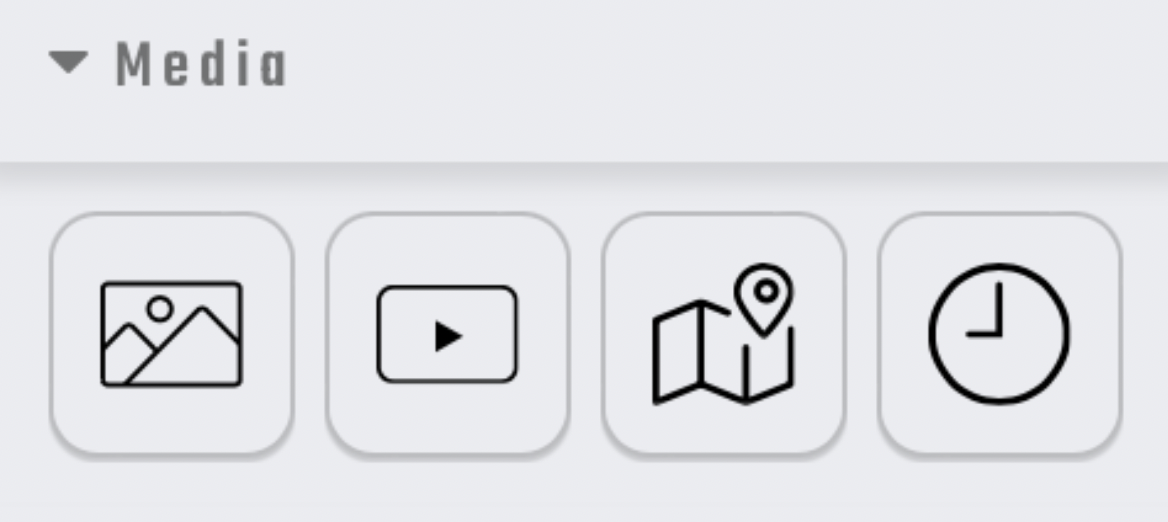
Media
Section contains all media widgets such a images , videos , maps etc
Slides
Contains Carousel image sliders
Design Panel Tabs
Style Manager
The tab houses the controls to stylize modules according to the users liking

Settings Tab
The following tab will contain the settings for the modules and components.

Open Layer Manager
The following section showcases the hierarchy of the design elements layer out on a given page

WEBEDGE Controls
Control Panel
Here you will find the top level controls to create and manage your app
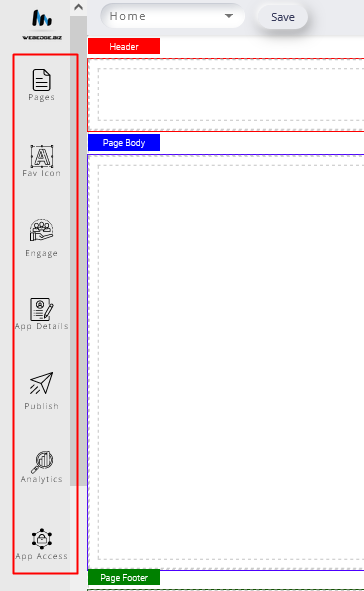
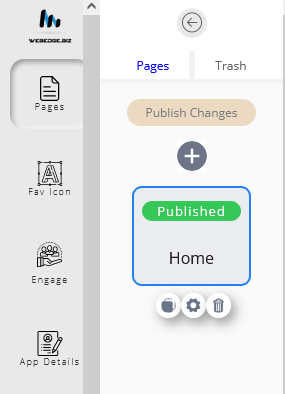
Pages
Pages opens up the panel to create , select and view pages
Analytics
Opens up app analytics panel which offers you details analysis on the amount of traffic your app generates.

App-Access
Create and manage users with access to your app

Report-Bugs
Report bugs and other errors to our support team though this button

Report
Gives access to a detailed view of your apps revenue report

Publish
Publish your designed app

Pages
Add A Page
Click on the pages tab in the WEBEDGE Menu
Click on the Add Page icon
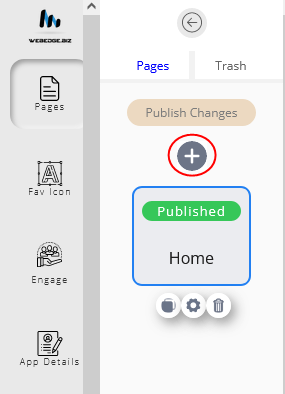
On the popup message box - type in a page name and Click Create

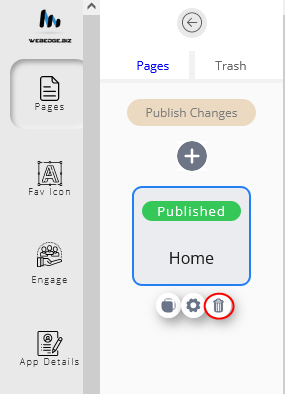
Delete Page
Click on trash button under pages created to delete page
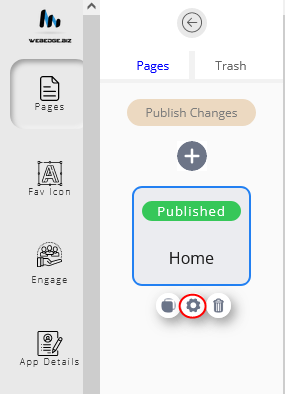
Page Settings
Click on settings button to rename/ publish or assign page as home assign page as home
Modules and Components
Columns & Rows
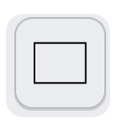 |
Single Row with a Single Column |
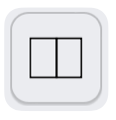 |
Two Column rows commonly used when laying Images and information side by side. |
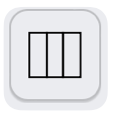 |
Three Column rows commonly used when laying Images and information side by side. |
Divide a row into more columns than whats provided in the open blocks library.
1.Add a column module from the open blocks library
|
In the following example I added the 3 column module by drag drop into the body section of the page. |
2.Now select any cell with in the 3 column module

3.Click on the “Clone Icon” to add a new column

4.A new Column is added.

Text Modules
 |
Text module is used to add chunks of text to sections with in the page layout |
 |
Quote Module is ideally used with in the Testimonial sections- the purpose of this Module is to encapsulate text with in quotes. |
 |
Text Section Module -The module includes Stylized Header tag as well as text paragraph to follow |
 |
HEADER TAG MODULES |
Buttons
 |
Navbar - Use this to create your site header menu |
 |
Link to an external source |
 |
Link Bloc is used to link to a section of the same page - more like an anchor link |
 |
Buttons are used to-Link to an external source |
 |
Image Links - Used to link to an External source |
 |
Image Link Page - Used to link to an internal page with in The app |
 |
Page links - Used to link to an internal page with in The app |